
 By Pallavi Thakur
Coupons are one of the best ways to attract new customers, increase sales and promote your business online. With LocolDeal, it’s very simple and straightforward to create and manage coupons. It’s very easy to create attractive discount offers for your customers, whether you own an online store, local business or affiliate website.
In this guide, we will walk you through the entire process of setting up your LocolDeal business account, verifying your business and publishing your first coupon.
Step 1: Sign up for a business account on LocolDeal
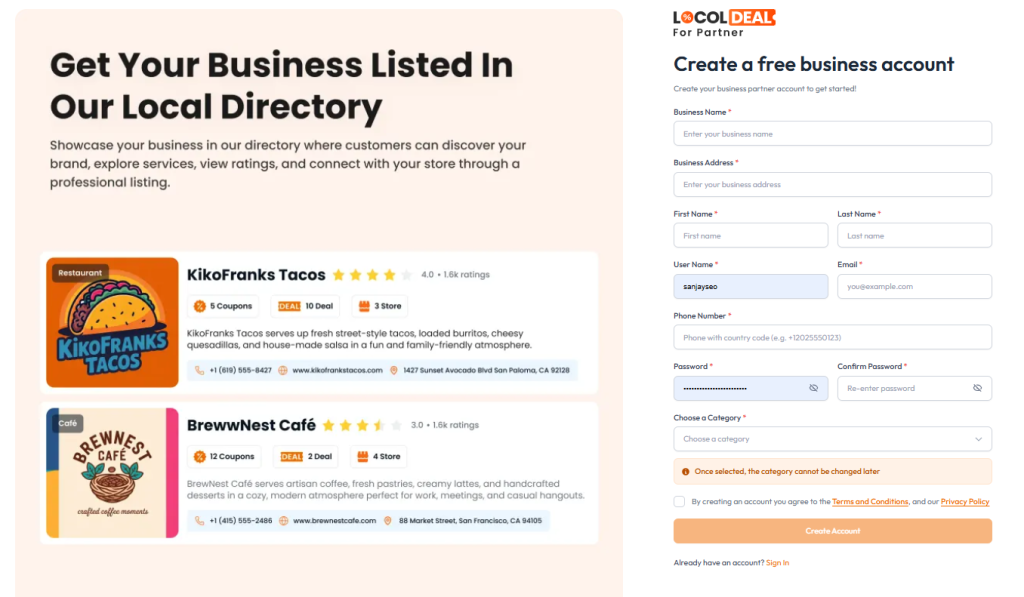
Visit the LocolDeal signup page and enter the business information needed.
- Required Data>>Business Name(Enter your business name)
- Business Address, Given Name(Type your first name, Surname)
- Enter your surname(User Name)
- Pick a unique username.
- Email: Enter your email address (e.g. [email protected]).
- Phone Number*
- Please enter your mobile number with country code (e.g. +12025550123)
- Password(Make a strong password).
- Confirm Password
- Re-type your password.
- Select a Category
- Choose the category that best fits your business.
Once you have filled in all the necessary details, click on Create Account.
Your business account is successfully created.
Step 2: Sign in to your account
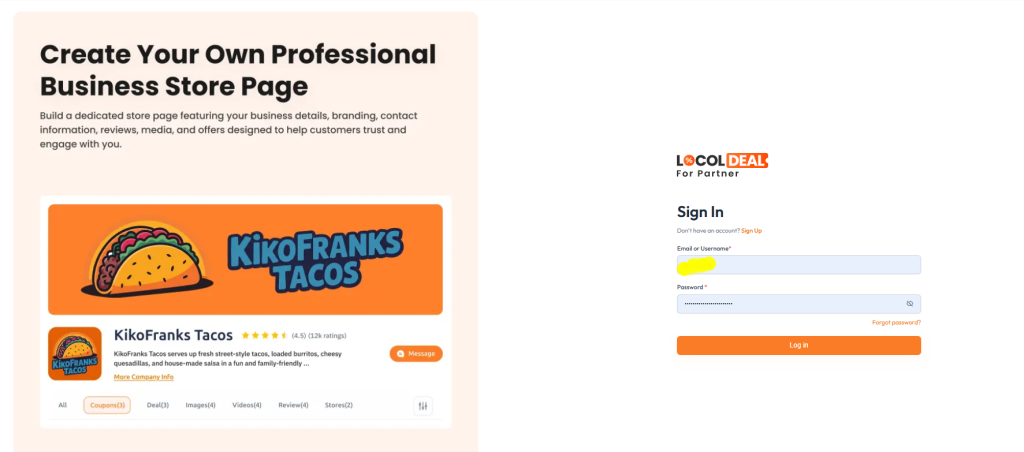
- After you create your account, open the vendor login portal:
- https://vendors.locoldeal.com/signin Sign in Email or Username Password
- Click Sign In to get to your business dashboard.
Step 3. Fill Out Your Profile
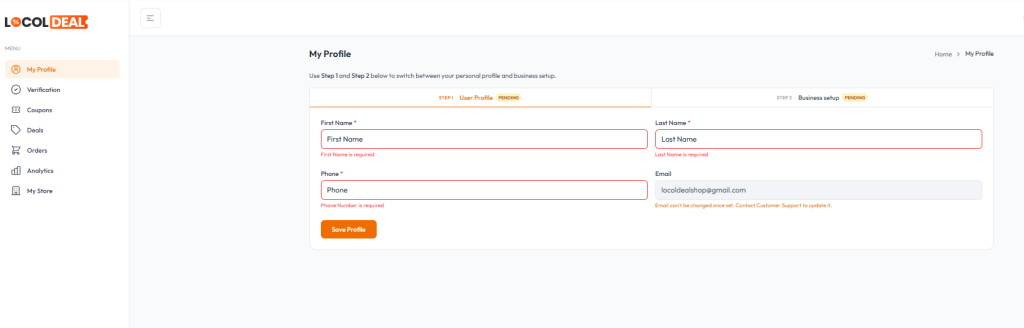
When you log in, you’ll be directed to your dashboard.
- Go to My Profile and fill in your information as follows:
- First Name Last Name Phone Number
- Click Save Profile to update your account information.
Filling out your profile helps with account management and getting your business verified.
Step 4: Confirm Your Business
We recommend checking your business before creating coupons.
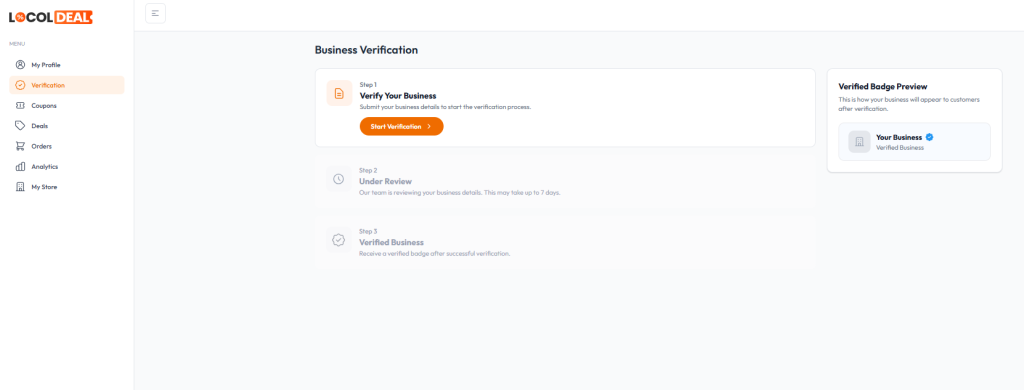
- Business Verification Process
- Click to Verify.
- Click on Start verification.
- Submit your business details and any documents required.
- Your information will be reviewed by LocolDeal Team.
- If approved, your business receives a Verified Business Badge.
- Advantages of Verification
- Greater trust from customers
- Increased business credibility
- Show verified business badge
- Better visibility within the platform
Step 5: Click on Coupons
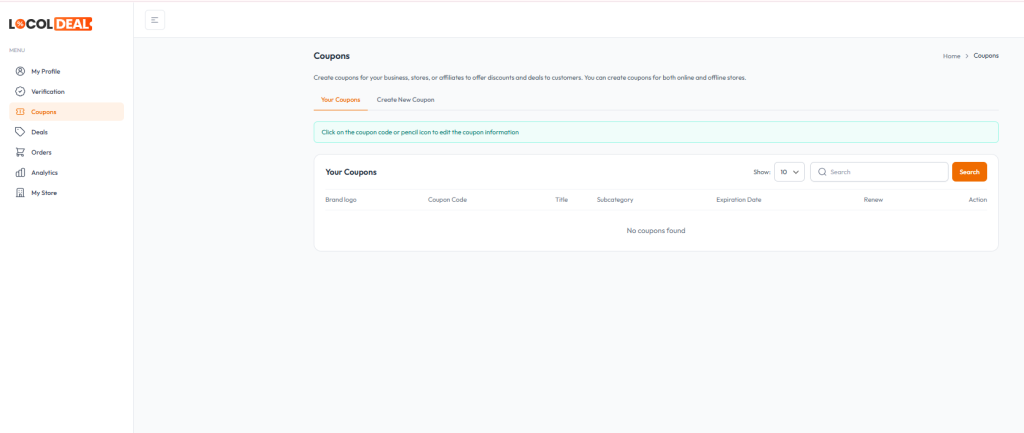
Click Coupons on the left sidebar menu.
You will notice two sections:
Your Coupons Add New Coupon
Click Create New Coupon to begin creating your promotional offer.
Step 6: Enter Coupon Details
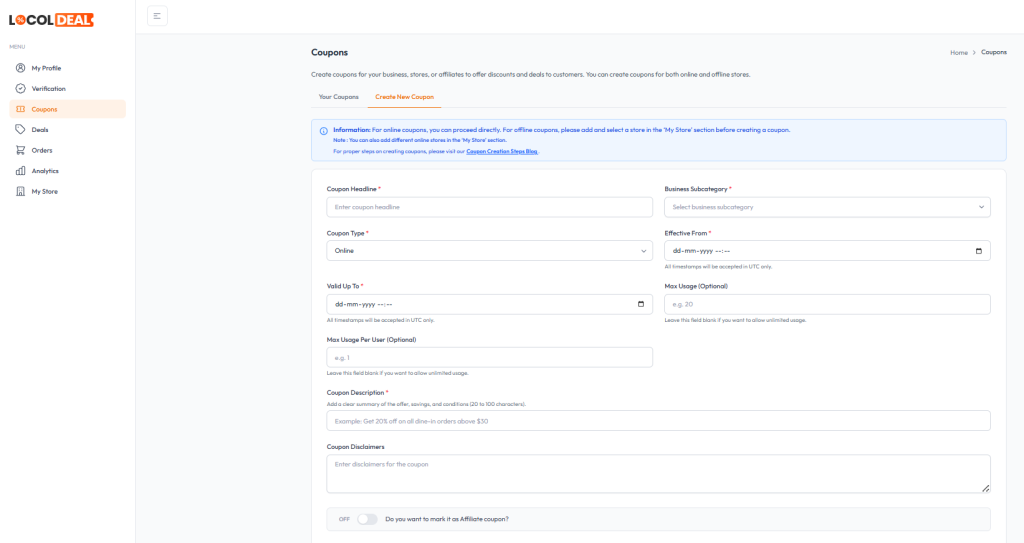
To create a coupon, please fill in all the required fields.
Coupon Headline *
Create an attractive and descriptive coupon title.
For example:
20% discount on all products
Business Subcategory*
Choose the most relevant business subcategory for your offer.
Coupon Type *
Pick the type of coupon.
For example:
Internet
LocolDeal supports online and offline coupon campaigns.
Effective as of *
Set the date and time you want your coupon to become active.
Format:
dd-mm-yyyy –:–
All timestamps are only accepted in UTC
Valid until *
Choose the coupon expiration date and time.
Format:
dd-mm-yyyy –:–
All timestamps are accepted in UTC only.
Max Usage (Optional)
Indicate the total number of uses of the coupon.
Example:
20
Leave blank for unlimited use.
(Optional) Maximum Use Per User
Limit the number of times a coupon can be used by one customer.
For example:
1
Leave blank for unlimited use per customer.
* Coupon Details
Short summary, savings and conditions of the offer.
Requirements:
20-100 characters
easy and simple to understand
Sample:
Enjoy 20% off on all dine-in orders above $30.
Coupon Disclaimers
Add any terms and conditions that apply to the coupon.
Examples:
- Hurry, limited time offer.
- Not valid with any other offers.
- Limit one coupon per customer.
- While stocks last. Offer available.
Step 7: Additional Options
Depending on your business model, you might have the option to:
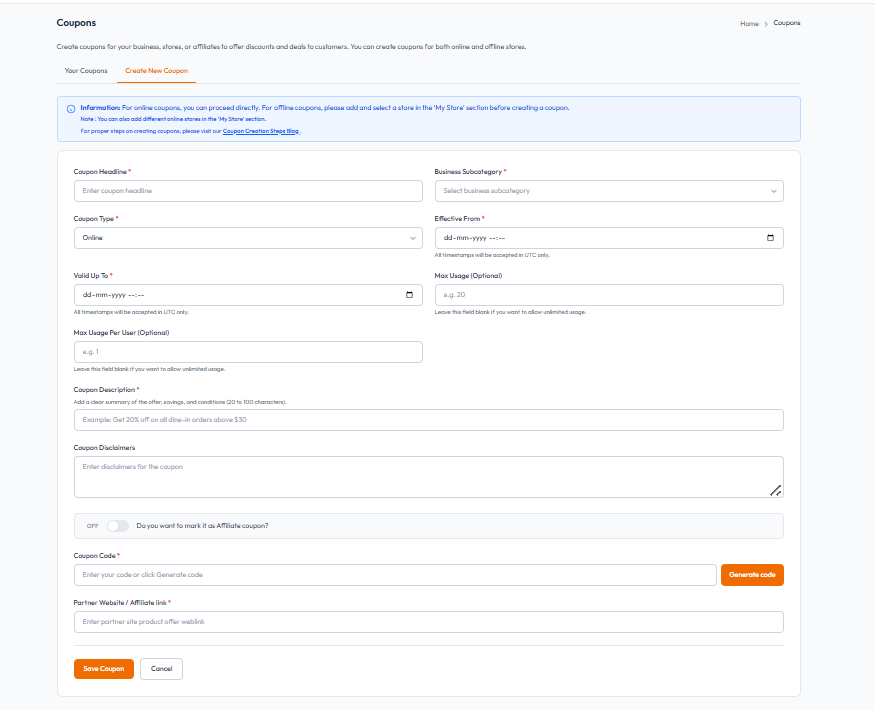
- Mark coupon as affiliate coupon.
- Information store
- Customize offer preferences
Please check all the information before publishing.
Step 8: Release Your Coupon
When all fields are filled:
- Look over the coupon details.
- Check the dates and restrictions.
- Click Create Coupon or Save Coupon button
Your coupon will now show up under Your Coupons and will be visible to customers based on the activation date.
Tips on Making High Converting Coupons
Create a Catchy Headline
Use action-oriented phrases like:
- BOGO
- Today Only 20% Off Limited Time Offer
- Display expiry dates clearly
Urgency motivates customers to take action.
Make it Simple Words
Easy to understand conditions lead to higher coupon redemption by customers.
Related Categories
Correct categorization helps customers find your offers faster.
Keep Descriptions Short
Clearly explain the value the customer will get.
Final Closer
With LocolDeal creating coupons for your products and services is easy and effective. Register your business, get it verified and create compelling offers to attract more customers and increase conversions.
Create your account, verify your business and start your first coupon campaign today to get the most visibility and sales for your business on LocolDeal.